Here i will show you the tutorial how to download the graphic drivers and how to install it. I cannot host the file in any free file hosting since its Microsoft copyright. So you must download directly from Microsoft.
A: DOWNLOAD THE DRIVER FILES
1. Open Microsoft update catalog using IE(Internet Explorer) ONLY! Do not use any other browser such as chrome or Firefox etc.
URL: http://catalog.update.microsoft.com
(if the link broken, just search Microsoft update catalog)
2. The if it prompts to install active-x just installed it. It will prompt on the top of the page.
3. On the search box type Intel 965.
4. You will see many list there. You may chose the latest version or download all available version by clicking add.
5. Next click View basket and click download.
6. Next we will need to point out the location for the downloaded driver. I suggest create new folder on desktop. Click browse and point out where you want it save the file.
7. Then select continue and wait until download finish.
8. here is how the driver files will look like. You can extract the CAB file using winrar and rename the extracted folder since the name is too long.
B: INSTALLING THE DI\RIVER FILES
if you extract using winrar, right click and select extract files, then click ok (rename it with win7 intel965graphics), it will create a win7 intel965graphics folder.
2. open device manager (click start on the search box type DEVMGMT.MSC and press enter)
3. right click on Standard VGA, select update driver,
4. selecf browse my computer for device driver software.
5. select let me pick from a list of devices driver in my computer.
6.next, select have disk, browse to the driver we extract earlier. select; the inf files and continue with on screen instruction.
Showing posts with label 1-costum graphic. Show all posts
Showing posts with label 1-costum graphic. Show all posts
Tuesday, June 7, 2011

Thursday, May 5, 2011
Intel 82852/82855 GM/GME Driver for Compaq
I posted a general solution to install Intel 82852/82855 GM/GME graphic chipset driver in windows 7, but for compaq there are easier way to install this graphic driver especially for v2000 model and m2000 model.
I try this method and it worked, there are many model across v2000 , m2000 and other compaq and HP laptop that use 82852/82855 GM/GME
A. First Download the driver: SP28484
Download: direct | mediafire
B.Installation for Windows XP:
Just download and install the driver
C. Installation for windows 7:
1. download the driver file and extract it

2. you will get a folder that we will need later.

3. Open task manager by click start and type in the search box DEVMGMT.MSC

4. Press ENTER or select the reult on the top
5. A device manager will open and under the graphic adapter you will see standard VGA listed.
6. Right click on standard VGA and select update driver.

7. Select browse my computer for driver software
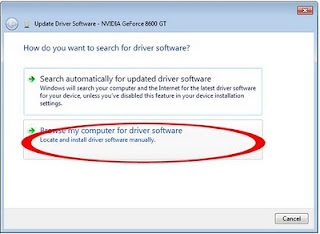
8. Select Browse and tick in the box " Include subfolders"

9. The browse to driver folder we extracted earlier and press ok

10. continue with on screen instruction and restart, you will be able to get the optimum resolution if it installed automatically.
If you have problems leave your comments.
I try this method and it worked, there are many model across v2000 , m2000 and other compaq and HP laptop that use 82852/82855 GM/GME
A. First Download the driver: SP28484
Download: direct | mediafire
B.Installation for Windows XP:
Just download and install the driver
C. Installation for windows 7:
1. download the driver file and extract it

2. you will get a folder that we will need later.
3. Open task manager by click start and type in the search box DEVMGMT.MSC

4. Press ENTER or select the reult on the top
5. A device manager will open and under the graphic adapter you will see standard VGA listed.
6. Right click on standard VGA and select update driver.

7. Select browse my computer for driver software

8. Select Browse and tick in the box " Include subfolders"

9. The browse to driver folder we extracted earlier and press ok

10. continue with on screen instruction and restart, you will be able to get the optimum resolution if it installed automatically.
If you have problems leave your comments.
Sunday, March 20, 2011
ATI Radeon IGP 340M Windows 7 Driver
IGP 340M is also known as IGP340M/345M in compaq and HP model, another term use by compaq is ATI RS200M
Download the Driver:
Download
1. Extarct the driver. Remember where the extracted driver folder because we will it later.
2. Open device manager by click start and or the search box type DEVMGMT.MSC and press ENTER.
 3. A device manager willl open.
4. Look at the Display Adapter, (expand it) you will see standard VGA listed.
5. Right click on it select update Driver.
6. Select 2nd option "Browse my computer for device driver"

7. Click browse button and browse to the driver folder we extracted earlier (tick the box include sub-folder)

8. Press Next and continue with on screen instruction.
For windows Vista I never test it yet but i believe you also can use the same mehod for win vista.
The Idea is to use your windows XP but, but instead of using direct install we use manual installation by update it from device manager.
Download the Driver:
Download
1. Extarct the driver. Remember where the extracted driver folder because we will it later.
2. Open device manager by click start and or the search box type DEVMGMT.MSC and press ENTER.
4. Look at the Display Adapter, (expand it) you will see standard VGA listed.
5. Right click on it select update Driver.
6. Select 2nd option "Browse my computer for device driver"

7. Click browse button and browse to the driver folder we extracted earlier (tick the box include sub-folder)

8. Press Next and continue with on screen instruction.
For windows Vista I never test it yet but i believe you also can use the same mehod for win vista.
The Idea is to use your windows XP but, but instead of using direct install we use manual installation by update it from device manager.
Saturday, December 18, 2010
NVIDIA Gforce Go 6 and 7 Series Driver and Installation Guide
This tutorial will show you how to manually install the graphic Driver fo GeForce Go 6100 and 7000m.
Not necessarily for Presario F700 but to any model which use the same Hardware.
VALID for:
Nvidia go 6 and 7 Series
Before you try the manual installation method i suggest try to perform direct install first.
The drivers:
Nvidia Geforce go 7 and 6 series Windows 7 Driver
179.48_32bit
179.48_64bit
THERE ARE 3 WAY TO INSTALL:
A: MANUAL INSTALLATION
B: FORCE INSTALL
C: MODED INF
--------------------------
A: INSTALLATION
-------------------------
After finish download and install you will get the nvdia driver folder at C:\NVIDIA
1.First open device manager by click start and type devmgmt.msc as shown in the pictures below.

2.". Right-click on "video controller/ Standard VGA" and SELECT update driver.
3.Choose "Browse my computer for the Driver Software" .

4. Then select browse: Then browse to the Nvidia folder

5. Then click next, wait until it finish install and restart.
--------------------------------------
B: FORCE INSTALLATION.
------------------------------------------
If installing manually fail, we can try force installation.
1. Note that from STEP 4 in manual installation we select browse, this time select LET ME PICK A LIST OF DEVIC DRIVERS IN MY COMPUTER.
2. Select next and select have disk, browse to the C:\NVIDIA and select the INF file.
Continue with on screen instruction.
------------------
C: MODED INF
------------------
For modded INF:
(modded INF is at your own risk, This tutorial provide as information for me and others, if you perform this tutorial make sure you have the right to do so)
For GeForce Release 195.81, here 32bit and here 64bit
For GeForce Release 197.16, here 32bit and here 64bit
3-step process to install:
1. Download driver, double click and select extract,
2. Download modded INF and replace original INF in extracted folder(C:\NVIDIA)
3. Install & reboot.
If you have any question you can leave your comments.
Not necessarily for Presario F700 but to any model which use the same Hardware.
VALID for:
Nvidia go 6 and 7 Series
Before you try the manual installation method i suggest try to perform direct install first.
The drivers:
Nvidia Geforce go 7 and 6 series Windows 7 Driver
179.48_32bit
179.48_64bit
THERE ARE 3 WAY TO INSTALL:
A: MANUAL INSTALLATION
B: FORCE INSTALL
C: MODED INF
--------------------------
A: INSTALLATION
-------------------------
After finish download and install you will get the nvdia driver folder at C:\NVIDIA
1.First open device manager by click start and type devmgmt.msc as shown in the pictures below.

2.". Right-click on "video controller/ Standard VGA" and SELECT update driver.
3.Choose "Browse my computer for the Driver Software" .

4. Then select browse: Then browse to the Nvidia folder

5. Then click next, wait until it finish install and restart.
--------------------------------------
B: FORCE INSTALLATION.
------------------------------------------
If installing manually fail, we can try force installation.
1. Note that from STEP 4 in manual installation we select browse, this time select LET ME PICK A LIST OF DEVIC DRIVERS IN MY COMPUTER.
2. Select next and select have disk, browse to the C:\NVIDIA and select the INF file.
Continue with on screen instruction.
------------------
C: MODED INF
------------------
For modded INF:
(modded INF is at your own risk, This tutorial provide as information for me and others, if you perform this tutorial make sure you have the right to do so)
For GeForce Release 195.81, here 32bit and here 64bit
For GeForce Release 197.16, here 32bit and here 64bit
3-step process to install:
1. Download driver, double click and select extract,
2. Download modded INF and replace original INF in extracted folder(C:\NVIDIA)
3. Install & reboot.
If you have any question you can leave your comments.
Saturday, February 27, 2010
Asus K25Jr ATI Graphic Driver For XP
To download and Install the ATI graphic for this model follow this guide:
1. Open ASUS Driver Download page:
http://support.asus.com/download/download.aspx?SLanguage=en-us
2. Fill in/select model in the box like the pictures below and click search:

3. The a pop up windows Will open and select Windows 7:
4. After that scroll untill you find the VGA and click on the [+] to expand the graphic driver list, and select the last One, Download and install:

Note that the Driver details should be:
ATI Mobility Radeon HD 5470
8.680.0.0000
1. Open ASUS Driver Download page:
http://support.asus.com/download/download.aspx?SLanguage=en-us
2. Fill in/select model in the box like the pictures below and click search:

3. The a pop up windows Will open and select Windows 7:

4. After that scroll untill you find the VGA and click on the [+] to expand the graphic driver list, and select the last One, Download and install:

Note that the Driver details should be:
ATI Mobility Radeon HD 5470
8.680.0.0000
Monday, January 4, 2010
Intel 82852/82855 GM/GME Windows 7 Driver
Intel 82852/82855 GM/GME Graphics Controller Driver For Windows 7
notes: make sure you follow the instructions carefully:
compile by: Lexxion
edited by: Black x
for expert you can skip certain part, because there are many different level of users, i compose this post in details.
IMPORTANT!
make sure you log in to you pc as administrator/use administrator account
PART 1: DOWNLOAD AND EXTRACTING DRIVERS
1. Download the drivers:
Intel(R) Graphics Controller 6.14.10.3722 (Windows)
Download
or another link
Download
2. here files is in zip format, you need to extract it, i suggest for beginner to make your work easier, make a folder in desktop named intel graphic (right click on desktop and select new folder, type Intel Graphic)

3. Paste the driver you download on the Intel Graphic folder you just created, right click on the Intel_6_14_10_3722.zip you extracted and select extract here, it should look like this: (NOTE;: please remember where you extract the driver, you will need it later)
 proceed to part 2.
PART 2: UNINSTALL CURRENT DRIVERS
1. If you already installed other driver and failed (if you don't skip part 2), you will find yellow mark on the device manager, right click on it and select uninstall. Your Device Manager should say that you have Standard VGA Driver installed under Display category and exclamation mark on "video controller". Make sure you restart PC when asked.
PART 3: EDIT c:\windows\system32\drivers\vgapnp.sys
1.Click 'Start' and in 'Search' type 'cmd'. The result will show on top. Right-click on 'cmd' and choose "Run as Administrator". If your account does not have admin rights you might be prompted to enter username and password. I used account that already has administrator privileges.


3. Press enter and the result will be success etc, refer to picture above. (the username are differ so your line might differ from the screenshoot)
4. Then type or copy and paste this line:
cacls c:\windows\system32\drivers\vgapnp.sys /G peter:F
IMPOTANT: at line above you must replace!! peter with your computer name, how to check your computer name, click start and note under the pictures it show your pc name, look at the picture below:

above note my pc name is ajis
cacls c:\windows\system32\drivers\vgapnp.sys /G ajis:F
, after that type it on your cmd (look at pics below after press enter
There will be a confirmation message so type 'y'

PART 4: EDIT c:\windows\system32\drivers\vgapnp.sys
1. Open c:\windows\system32\drivers\vgapnp.sys right click and select open or open with.

2. choose second option on the radio button "select program from a list of installed programs "

3. then select notepad

4. Just add any character to the begining of the text. Let's say we will add character x . So the text should start with xMZ and the rest of stuff. Save the file. This edit will render that file unusable.
example before we add text it should look like this:

after adding text it should look like this

PART5: UNISTALL CURRENT DRIVERS
1.First open device manager by click start and type devmgmt.msc as shown in the pictures below.
2. In Device Manager uninstall Standard VGA Adapter.

3. It will prompt you to restart so do it.
4.After install you will see a message saying that certain devices did NOT installed successfuly, which is GOOD :).
5.Go to Device Manager and you should see the exclamation point next to "video controller" and "video controller (vga compatible)". Right-click on "video controller (vga compatible)" and SELECT update driver.
6.Choose "Browse my computer for the Driver Software" .
7. Then select browse:
8. Then notice that in part 1 i suggest you extract the driver in new folder (folder name: intel graphic). After click browse point to the folder. expand by click the small arrow button until you find the win2000.

9. Wait for the driver to be installed. It might hang for a little (It will say that window is "not responding"). Do not worry as this is still installing the driver. It will prompt you to restart so do it. (If it does not prompt click anywhere and wait for message). After restart it will finish installing the driver.
10. Open c:\windows\system32\drivers\vgapnp.sys in any text editor. Remove the first character you put there which was x. Save the file. it should look like this before saving it (MZ - ignore other character)
Your file will be usuable again :). You can stop here if you want, but if you want to restore the permissions for the file to original state:
Right-click on any other file in the c:\windows\system32\drivers. Choose "Properties". Go to "Security" tab. Now compare that security tab with the security tab of c:\windows\system32\drivers\vgapnp.sys. Just make sure the security tabs of those two files look the same (all tabs and advanced options). In order to add "TrustedInstaller" it is not the same as regular usernames because it is a service.
You will need to type "NT SERVICE\TrustedInstaller" (without quotes) when adding it to own the file and to have all permissions. Once you done editing you can delete your account from c:\windows\system32\drivers\vgapnp.sys, because it was not there from the beginning. We took control over and the previous commands added it by default.
notes: make sure you follow the instructions carefully:
compile by: Lexxion
edited by: Black x
for expert you can skip certain part, because there are many different level of users, i compose this post in details.
IMPORTANT!
make sure you log in to you pc as administrator/use administrator account
PART 1: DOWNLOAD AND EXTRACTING DRIVERS
1. Download the drivers:
Intel(R) Graphics Controller 6.14.10.3722 (Windows)
Download
or another link
Download
2. here files is in zip format, you need to extract it, i suggest for beginner to make your work easier, make a folder in desktop named intel graphic (right click on desktop and select new folder, type Intel Graphic)

3. Paste the driver you download on the Intel Graphic folder you just created, right click on the Intel_6_14_10_3722.zip you extracted and select extract here, it should look like this: (NOTE;: please remember where you extract the driver, you will need it later)

PART 2: UNINSTALL CURRENT DRIVERS
1. If you already installed other driver and failed (if you don't skip part 2), you will find yellow mark on the device manager, right click on it and select uninstall. Your Device Manager should say that you have Standard VGA Driver installed under Display category and exclamation mark on "video controller". Make sure you restart PC when asked.
PART 3: EDIT c:\windows\system32\drivers\vgapnp.sys
1.Click 'Start' and in 'Search' type 'cmd'. The result will show on top. Right-click on 'cmd' and choose "Run as Administrator". If your account does not have admin rights you might be prompted to enter username and password. I used account that already has administrator privileges.

2. The type or copy/paste the following line (pics below):
takeown /f c:\windows\system32\drivers\vgapnp.sys

3. Press enter and the result will be success etc, refer to picture above. (the username are differ so your line might differ from the screenshoot)
4. Then type or copy and paste this line:
cacls c:\windows\system32\drivers\vgapnp.sys /G peter:F
IMPOTANT: at line above you must replace!! peter with your computer name, how to check your computer name, click start and note under the pictures it show your pc name, look at the picture below:

above note my pc name is ajis
so my line will be
cacls c:\windows\system32\drivers\vgapnp.sys /G ajis:F
, after that type it on your cmd (look at pics below after press enter
There will be a confirmation message so type 'y'

PART 4: EDIT c:\windows\system32\drivers\vgapnp.sys
1. Open c:\windows\system32\drivers\vgapnp.sys right click and select open or open with.

2. choose second option on the radio button "select program from a list of installed programs "

3. then select notepad

4. Just add any character to the begining of the text. Let's say we will add character x . So the text should start with xMZ and the rest of stuff. Save the file. This edit will render that file unusable.
example before we add text it should look like this:

after adding text it should look like this

PART5: UNISTALL CURRENT DRIVERS
1.First open device manager by click start and type devmgmt.msc as shown in the pictures below.

3. It will prompt you to restart so do it.
4.After install you will see a message saying that certain devices did NOT installed successfuly, which is GOOD :).
5.Go to Device Manager and you should see the exclamation point next to "video controller" and "video controller (vga compatible)". Right-click on "video controller (vga compatible)" and SELECT update driver.
6.Choose "Browse my computer for the Driver Software" .
7. Then select browse:
8. Then notice that in part 1 i suggest you extract the driver in new folder (folder name: intel graphic). After click browse point to the folder. expand by click the small arrow button until you find the win2000.

9. Wait for the driver to be installed. It might hang for a little (It will say that window is "not responding"). Do not worry as this is still installing the driver. It will prompt you to restart so do it. (If it does not prompt click anywhere and wait for message). After restart it will finish installing the driver.
10. Open c:\windows\system32\drivers\vgapnp.sys in any text editor. Remove the first character you put there which was x. Save the file. it should look like this before saving it (MZ - ignore other character)
Your file will be usuable again :). You can stop here if you want, but if you want to restore the permissions for the file to original state:
Right-click on any other file in the c:\windows\system32\drivers. Choose "Properties". Go to "Security" tab. Now compare that security tab with the security tab of c:\windows\system32\drivers\vgapnp.sys. Just make sure the security tabs of those two files look the same (all tabs and advanced options). In order to add "TrustedInstaller" it is not the same as regular usernames because it is a service.
You will need to type "NT SERVICE\TrustedInstaller" (without quotes) when adding it to own the file and to have all permissions. Once you done editing you can delete your account from c:\windows\system32\drivers\vgapnp.sys, because it was not there from the beginning. We took control over and the previous commands added it by default.
Monday, November 23, 2009
ATI Mobility Radeon HD3200 XP Driver and Installation Guide
This applied to the following graphics:
ATI Radeon™ 3000 Series
ATI Radeon™ 3100 Series
ATI Radeon™ HD 3200 Series
ATI Radeon™ HD 3300 Series
ATI Radeon™ HD 4200 Series
AMD FireStream™ 9250
AMD FireStream™ 9270
ATI Radeon™ HD 5800 Series ATI Radeon™ HD 4600 Series
ATI Radeon™ HD 5700 Series ATI Radeon™ HD 4550 Series
ATI Radeon™ HD 4890 Series ATI Radeon™ HD 4350 Series
ATI Radeon™ HD 4870 X2 Series ATI Radeon™ HD 3800 Series
ATI Radeon™ HD 4850 X2 Series ATI Radeon™ HD 3600 Series
ATI Radeon™ HD 4800 Series ATI Radeon™ HD 3400 Series
ATI Radeon™ HD 4700 Series ATI Radeon™ HD 2900 Series
ATI Radeon™ HD 4670 Series ATI Radeon™ HD 2600 Series
ATI Radeon™ HD 4650 Series ATI Radeon™ HD 2400 Series
YOU NEED THIS MATERIAL:
1.Download MSXML 6.0 from Microsoft. (Default in Vista) - Install.
2. ATI MOBILITY RADEON HD3200CATALYST
Download
Download
3.then Download ATI Mobility Modder.
Download (Official website)
Donwload (mediafire)
4. and Download NetFramework.
Net framework 2.0
Download
5: Run the downloaded driver, let it extract into c:/ATI/SUPPORT - but cancel the installation once the driver is extracted.
6: Run Mobility Modder - browse to the driver in C:ATI/SUPPORT/ - an example of Catalyst 9.1 would be C:\ATI\Support\9-9_xp32-64_sb , hit modify. Wait until driver is modified.
8: In Vista, go to C:\ATI\SUPPORT\7-4_vista32_dd_ccc_enu_44985 (Or whatever the driver installation folder was called), and run the SETUP.EXE. Please note you might see a "Driver is not WHQL certified", ignore this, as it is a side effect of the modification.
9: Wait until Install is finished and reboot.
Ok credits to the webmasters. here is the some words from the webmasters:
WEBMASTERS:
You are allowed to host the ZIP file on your site, but you MUST not change the contents or remove any files. This is simply because all the files in the folder are needed ! You must also link to this support page as without it, your end users could end up with problems, especially without a correct installation procedure. Any further questions about hosting this application or for inclusion on a CD or DVD with your publication please contact zardon@driverheaven.net. We would like to know the places this application is being hosted and/or shared, so please have the courtesy to let us know. This way we can also ensure you have the latest version.
Read more: ATI MobilityModder - DriverHeaven.net http://www.driverheaven.net/modtool.php#ixzz0Y2fWkgCa
You can also install by update from task manager|:
Manual Install:
Make a new folder (name it SM BUS)
Run the Setup exe file
A screen will open and ask you for a destination folder (Default is C:\ATI\Support\9-9_xp32-64_sb).
Click on the BROWSE tab and browse to the SM BUS folder you made.
Extract the driver files to the SM BUS folder.
Once extracted CANCEL the ATI install.
Go to the Device Manager
Right click on the SM BUS Controller (It should be in error, Yellow!)
Select: Update Driver
Select: No, not this time
Select: The ADVANCED option
Select: Include this location in the search
Select: Browse
Browse to the SM BUS folder
XP should install the SM BUS controller
manual installation compile by|: BCCOMP
ATI Radeon™ 3000 Series
ATI Radeon™ 3100 Series
ATI Radeon™ HD 3200 Series
ATI Radeon™ HD 3300 Series
ATI Radeon™ HD 4200 Series
AMD FireStream™ 9250
AMD FireStream™ 9270
ATI Radeon™ HD 5800 Series ATI Radeon™ HD 4600 Series
ATI Radeon™ HD 5700 Series ATI Radeon™ HD 4550 Series
ATI Radeon™ HD 4890 Series ATI Radeon™ HD 4350 Series
ATI Radeon™ HD 4870 X2 Series ATI Radeon™ HD 3800 Series
ATI Radeon™ HD 4850 X2 Series ATI Radeon™ HD 3600 Series
ATI Radeon™ HD 4800 Series ATI Radeon™ HD 3400 Series
ATI Radeon™ HD 4700 Series ATI Radeon™ HD 2900 Series
ATI Radeon™ HD 4670 Series ATI Radeon™ HD 2600 Series
ATI Radeon™ HD 4650 Series ATI Radeon™ HD 2400 Series
YOU NEED THIS MATERIAL:
1.Download MSXML 6.0 from Microsoft. (Default in Vista) - Install.
2. ATI MOBILITY RADEON HD3200CATALYST
Download
Download
3.then Download ATI Mobility Modder.
Download (Official website)
Donwload (mediafire)
4. and Download NetFramework.
Net framework 2.0
Download
5: Run the downloaded driver, let it extract into c:/ATI/SUPPORT - but cancel the installation once the driver is extracted.
6: Run Mobility Modder - browse to the driver in C:ATI/SUPPORT/ - an example of Catalyst 9.1 would be C:\ATI\Support\9-9_xp32-64_sb , hit modify. Wait until driver is modified.
8: In Vista, go to C:\ATI\SUPPORT\7-4_vista32_dd_ccc_enu_44985 (Or whatever the driver installation folder was called), and run the SETUP.EXE. Please note you might see a "Driver is not WHQL certified", ignore this, as it is a side effect of the modification.
9: Wait until Install is finished and reboot.
Ok credits to the webmasters. here is the some words from the webmasters:
WEBMASTERS:
You are allowed to host the ZIP file on your site, but you MUST not change the contents or remove any files. This is simply because all the files in the folder are needed ! You must also link to this support page as without it, your end users could end up with problems, especially without a correct installation procedure. Any further questions about hosting this application or for inclusion on a CD or DVD with your publication please contact zardon@driverheaven.net. We would like to know the places this application is being hosted and/or shared, so please have the courtesy to let us know. This way we can also ensure you have the latest version.
Read more: ATI MobilityModder - DriverHeaven.net http://www.driverheaven.net/modtool.php#ixzz0Y2fWkgCa
You can also install by update from task manager|:
Manual Install:
Make a new folder (name it SM BUS)
Run the Setup exe file
A screen will open and ask you for a destination folder (Default is C:\ATI\Support\9-9_xp32-64_sb).
Click on the BROWSE tab and browse to the SM BUS folder you made.
Extract the driver files to the SM BUS folder.
Once extracted CANCEL the ATI install.
Go to the Device Manager
Right click on the SM BUS Controller (It should be in error, Yellow!)
Select: Update Driver
Select: No, not this time
Select: The ADVANCED option
Select: Include this location in the search
Select: Browse
Browse to the SM BUS folder
XP should install the SM BUS controller
manual installation compile by|: BCCOMP
Friday, November 20, 2009
ATI Mobility Radeon HD4530 Windows XP Drivers
ATI MOBILITY RADEON HD 4530
select full catalyst suite and select either 32-bit or 64-bit. For end-user recommended 32-bit if you didn't know whic OS you use.
YOU NEED THIS MATERIAL:
1.Download MSXML 6.0 from Microsoft. (Default in Vista) - Install.
2. ATI MOBILITY RADEON HD 4530 CATALYST
Download
3.then Download ATI Mobility Modder.
Download (Official website)
Donwload (mediafire)
4. and Download NetFramework.
Net framework 2.0
Download
5: Run the downloaded driver, let it extract into c:/ATI/SUPPORT - but cancel the installation once the driver is extracted.
6: Run Mobility Modder - browse to the driver in C:ATI/SUPPORT/ - an example of Catalyst 7.4 would be C:\ATI\SUPPORT\7-4_vista32_dd_ccc_enu_44985 - hit modify. Wait until driver is modified.
8: In Vista, go to C:\ATI\SUPPORT\7-4_vista32_dd_ccc_enu_44985 (Or whatever the driver installation folder was called), and run the SETUP.EXE. Please note you might see a "Driver is not WHQL certified", ignore this, as it is a side effect of the modification.
9: Wait until Install is finished and reboot.
select full catalyst suite and select either 32-bit or 64-bit. For end-user recommended 32-bit if you didn't know whic OS you use.
YOU NEED THIS MATERIAL:
1.Download MSXML 6.0 from Microsoft. (Default in Vista) - Install.
2. ATI MOBILITY RADEON HD 4530 CATALYST
Download
3.then Download ATI Mobility Modder.
Download (Official website)
Donwload (mediafire)
4. and Download NetFramework.
Net framework 2.0
Download
5: Run the downloaded driver, let it extract into c:/ATI/SUPPORT - but cancel the installation once the driver is extracted.
6: Run Mobility Modder - browse to the driver in C:ATI/SUPPORT/ - an example of Catalyst 7.4 would be C:\ATI\SUPPORT\7-4_vista32_dd_ccc_enu_44985 - hit modify. Wait until driver is modified.
8: In Vista, go to C:\ATI\SUPPORT\7-4_vista32_dd_ccc_enu_44985 (Or whatever the driver installation folder was called), and run the SETUP.EXE. Please note you might see a "Driver is not WHQL certified", ignore this, as it is a side effect of the modification.
9: Wait until Install is finished and reboot.
Subscribe to:
Posts (Atom)